Help the user apply the essential details in this resource.
Package pages:
| Page | Markdown URL |
| --- | --- |
| Overview | https://hub.sayla.co/r/slide-deck-writer.md |
| Create Your Deck With Gamma | https://hub.sayla.co/r/slide-deck-writer/create-your-deck-with-gamma.md |
| Not Using Gamma? | https://hub.sayla.co/r/slide-deck-writer/not-using-gamma.md |
| Instructions | https://hub.sayla.co/r/slide-deck-writer.md#pkg-instructions |
| Contents | https://hub.sayla.co/r/slide-deck-writer.md#pkg-contents |
| Changelog | https://hub.sayla.co/r/slide-deck-writer.md#pkg-changelog |
# Slide Deck Writer
Page URL: https://hub.sayla.co/r/slide-deck-writer.md
Version: v1.0
You've got slides to make and notes that aren't quite deck-ready yet. This skill takes what you have — rough outline, brain dump, messy notes — and structures it into clean copy for Gamma or any AI slide generator. One clear message per slide. Ready to design.
## Overview
A while back I ended up in a blitz of making slides. Designing them kept turning into a time sink, so I reached for AI to help, and that's how I found [Gamma](https://gamma.app/signup?r=kwvwtiz43lqmbgh). It was great. It laid everything out in my brand, and my decks looked great. Getting them designed got a lot faster.
The writing was still slow, though. I'd spend time tweaking and editing my slides so Gamma understood how I wanted them designed. Eventually I thought, why does it have to be this way? Couldn't I get AI to help with this part too? That's when I built this skill.
## What it does
You bring what you already have. A brain dump, or rough notes.
Here's how I use it. I take my brain dump and pare it down into more of what I'm actually going to say, almost like a script or teleprompter copy. Then I hand that to the skill and it turns it into slides: one clear message each, in order, ready to design. And because I already know I'll be talking through the deck, I note the kind of visuals I want as I go. The skill keeps those cues in the output.
Narrate the visuals you want while you write: a diagram here, an infographic there. The skill turns those into visual cues in your copy. Gamma will often pick them up on its own. Or you can run the cues through an image AI, create the visuals, and upload them to Gamma yourself.
## How the formatting works
You don't need to memorize any of this. The skill handles it for you. But it helps to recognize what you're looking at, because the structure is simple once you see it. It follows a small set of formatting rules, a legend the slide generator can read.
Think of it as a key the slide generator reads:
- A top-level heading marks a section or title slide.
- A heading one level down is a single slide. Each one becomes its own slide.
- A divider means start a new slide here.
- Short notes in brackets tell the design tool what visual to add: a photo, a diagram, a set of icons.
That's the whole idea. Headings set the slides, the divider breaks them, and the bracketed notes hand the design tool its visual direction. When you read the output, you can see exactly where each slide starts and what's meant to live on it.
**It isn't only for Gamma.** I use Gamma, but nothing here is tied to it. The formatting is just a shared shorthand. Hand the output, legend and all, to whatever AI tool you build slides with, and it has enough to design the deck for you.
## Frequently Asked Questions
### Do I need Gamma to use this?
No. The skill writes plain, formatted text that works in any AI slide tool. Gamma is just the one I reach for.
### Do I have to learn the formatting myself?
Nope. Your AI uses the skill to do the formatting for you. You bring the content, the skill handles the structure.
### What do I give it to start?
Whatever you've got. A brain dump, rough notes, a transcript, an outline, or an already-written article. The skill shapes it into slide-ready copy.
### Where do I run this?
In Claude, ChatGPT, or any agent app at all. It's a skill your AI reads, not a separate app to open.
### Can I use this for a full talk, not just a short deck?
It comes down to your workflow and the tools you're using. If you're building the deck yourself, it can be as long as you want, and tools like Gamma have their own settings for how many slides to create.
### Does this write my slides or design them?
It writes them. You get clean slide copy with one clear message per slide, plus notes for the visuals you want. Your slide tool handles the actual design from there.
## Create Your Deck With Gamma
Gamma is the slide tool I reach for. Once the skill has written your deck, here's how you turn that copy into actual slides.
### Step 1: Choose Paste in text
In Gamma, start a new project with **Create with AI**, then pick **Paste in text**.
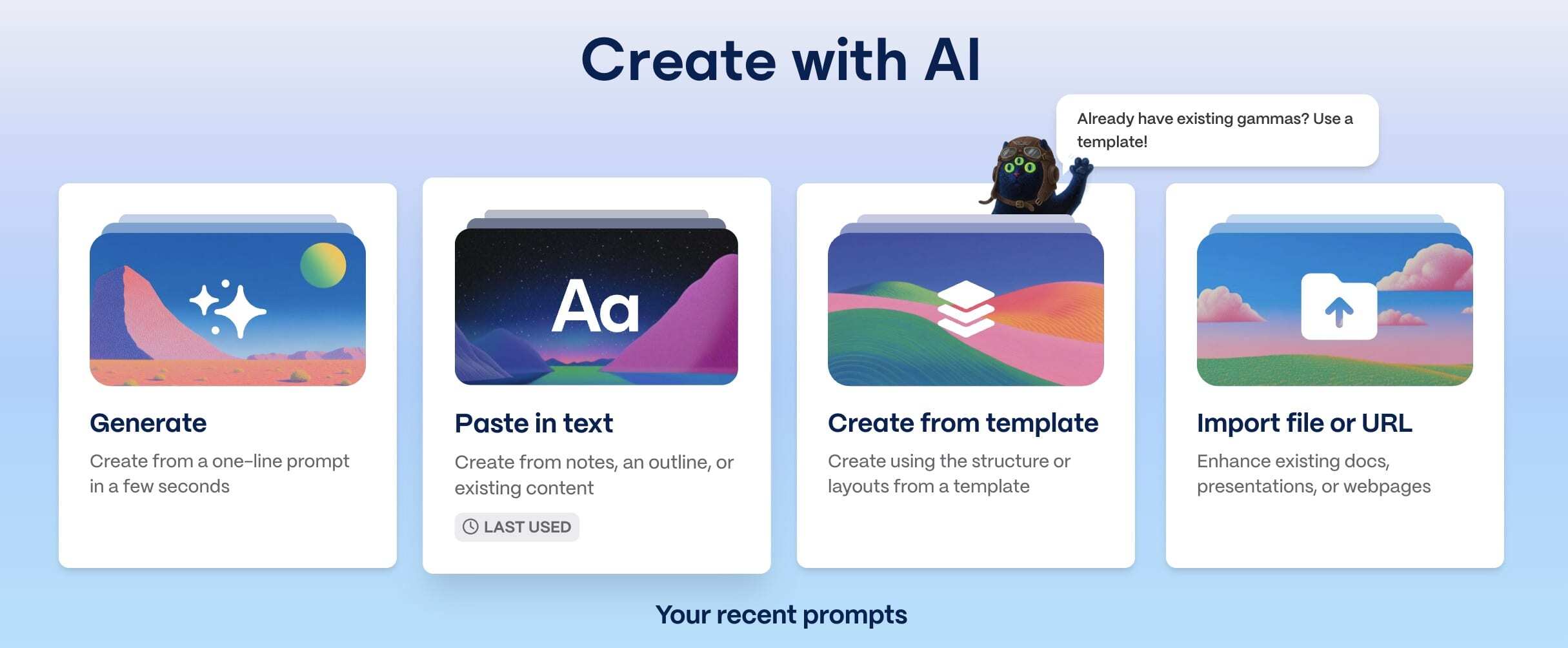
_Pick Paste in text._
### Step 2: Paste your deck
Choose your format, then paste in the deck the skill wrote for you. Under what to do with the content, pick **Generate from notes or an outline**, then continue to the prompt editor.
That's the option I use. I like to keep the visuals in my decks light, and this setting gives Gamma room to lay things out without crowding each slide.
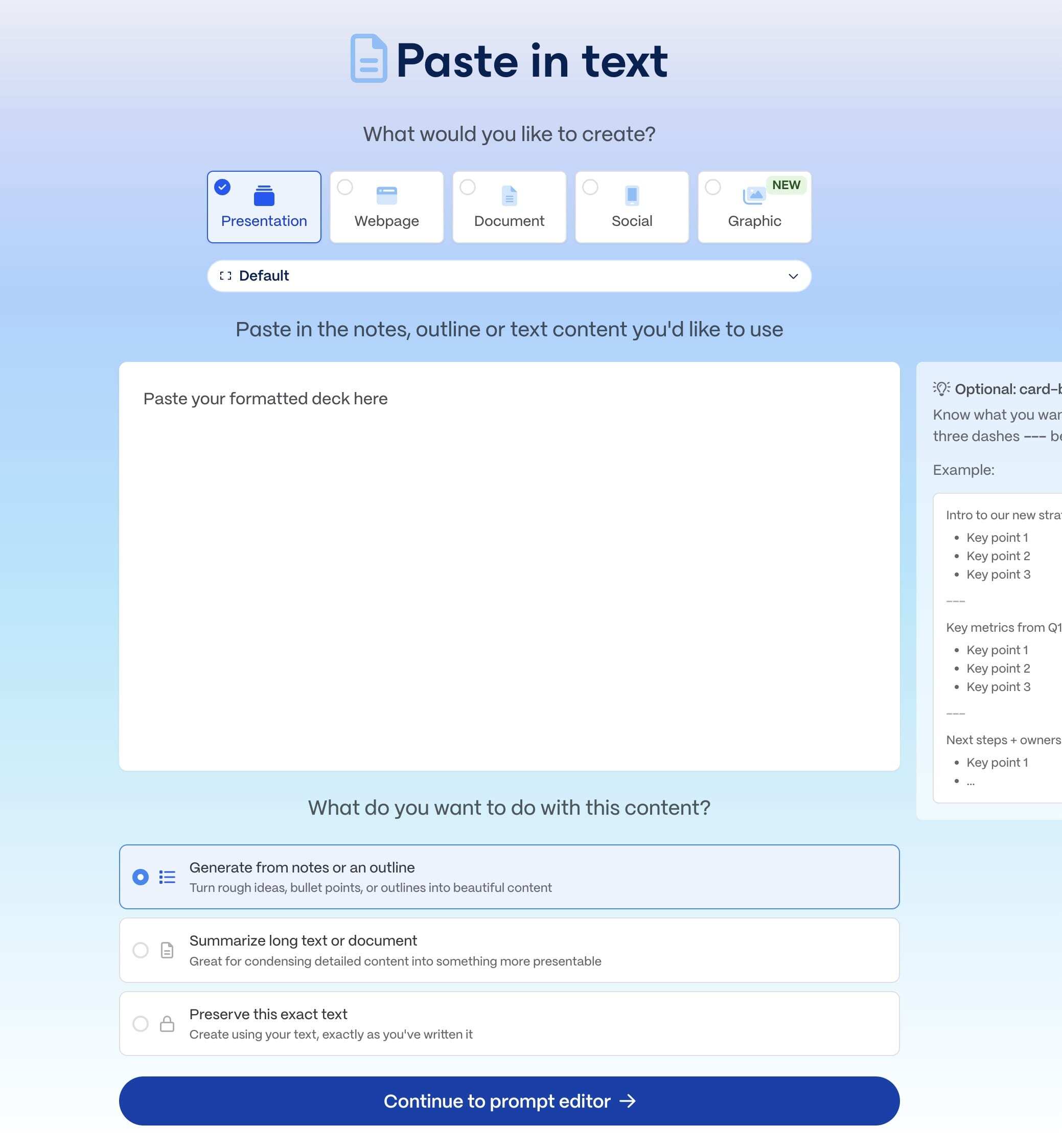
_Paste your formatted deck and choose Generate from notes or an outline._
### Step 3: Set Freeform, then create
At the top of the prompt editor, choose **Freeform** (not Card-by-card). Freeform takes your full deck and slices it into cards for you. Card-by-card is the manual route, where you add content one card at a time, which you only want if you're building each slide by hand.
From there, your visual notes come through exactly as you pasted them, and Gamma does its best to create those visuals the way you described. Pick how much text you want on each slide and how many cards, then hit **Generate**.
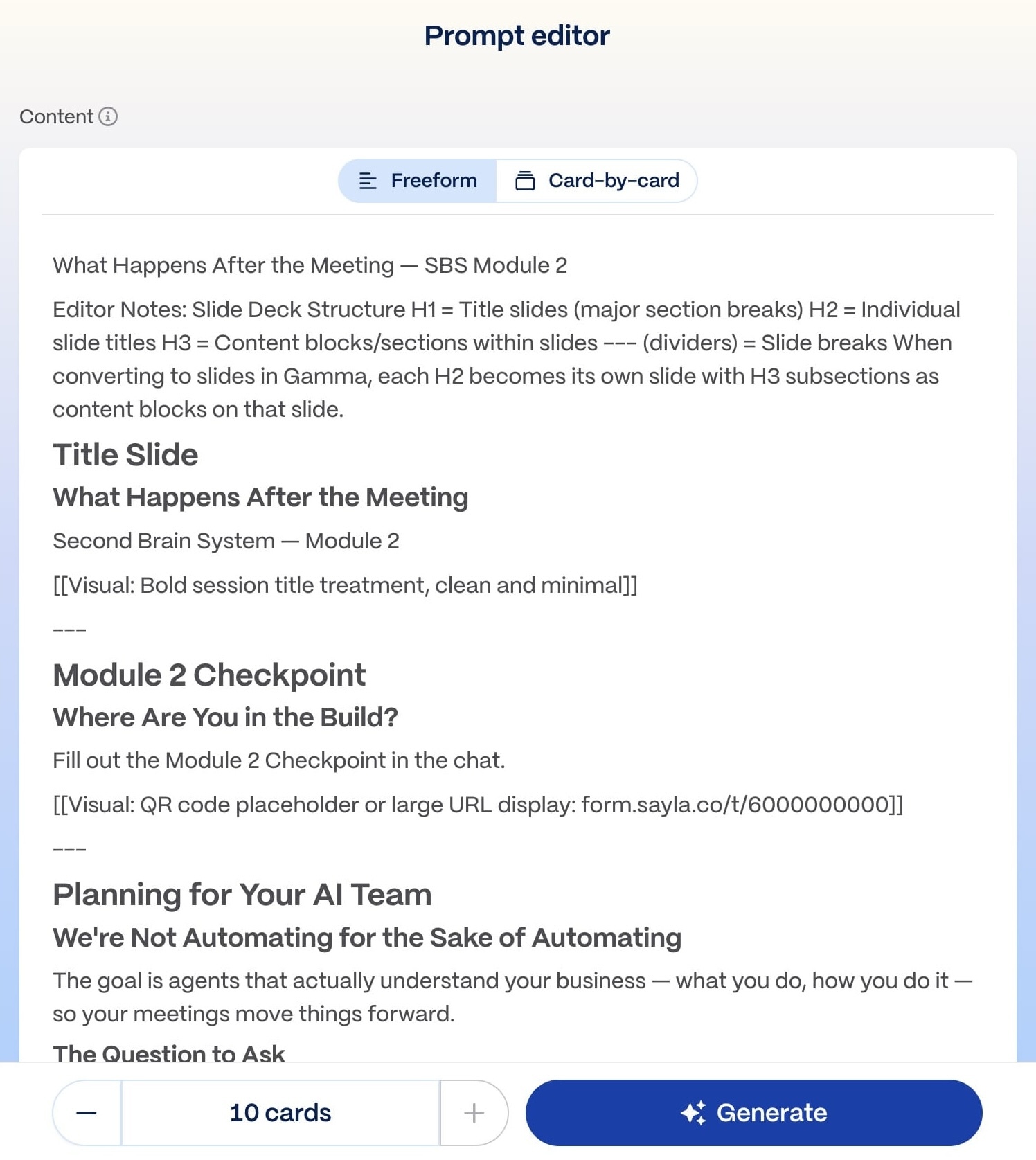
_Your visual notes ride along, and you choose the amount of text and number of cards before creating._
**Stay on Freeform.** It takes your full pasted deck and slices it into cards for you. Card-by-card is the manual route, where you add each card yourself. Either way, your bracketed visual notes ride along as direction for each slide.
## Not Using Gamma?
The deck the skill writes isn't tied to Gamma. It's plain, formatted text, so it works in any tool that builds slides from an outline. If Gamma isn't your tool, here's where else it fits.
### Notion
Notion has a presentation mode that turns a page into slides. As of the time of this writing, the feature is in beta. The skill's formatting is supported there too, so you can paste your deck onto a Notion page and present straight from it.
[See how Notion's presentation mode works](https://www.notion.com/help/presentation-mode).
Working in another tool? The same deck will usually drop right in. The formatting is just structured text, and any AI slide builder that reads an outline can work with it.
## Instructions {#pkg-instructions}
Use the matching package download for the AI app or workflow you want to use.
- Skill.zip
- Claude Skill
- ChatGPT package
- Custom GPT
## Contents {#pkg-contents}
```text
CHANGELOG.md
README.md
SKILL.md
```
## Changelog {#pkg-changelog}
# Changelog
## 1.0 — 2026-05-20
- Initial release (see the published Slide Deck Writer).
## About the Creator
> This resource was made by Blessing Richardson, founder of Sayla.
>
> Blessing Richardson — AI Strategist & Fractional Consultant.
>
> "I built my first webpage in elementary. More than 20 years later, I still love web and software tech. While building is fun, there's so much more joy in watching others discover what technology makes possible."